What is the “Save the Peak” Feature?
The "Save the Peak" assessment is a critical feature within the Heart Zones Move application that allows you to automatically set personalized heart rate zones for your students/participants based on their true physiological maximum heart rate.
The process involves running an all-out maximum effort activity while ensuring the "Save Peak Value" feature is enabled in the Heart Zones Move app settings.
Here is a comprehensive guide on how to run a "Save the Peak" assessment using Heart Zones Move:
1. Preparing for the Peak Heart Rate Assessment
The goal of this activity is to achieve the highest heart rate number possible (Peak Heart Rate) during an all-out, short-duration effort. This Peak Heart Rate is then used by the Heart Zones Move software to anchor and individualize all subsequent training zones.
- Equipment: You need the Heart Zones Move solution, including heart rate sensors (like the Blink 3.0+ Heart Rate Monitor), the iPad running the Heart Zones Move app, and a USB or Mobile Bridge.
- Safety Precaution: Whenever training at or near Max Heart Rate, be sure to watch for signs of extreme exertion.
- Assessment Activity: A high-intensity sprinting drill, such as the PACER Test, a mile test, or an all-out effort sprint on cardiovascular equipment (like a treadmill or bike), is recommended to achieve the Peak Heart Rate value.
- Warm-up: It is recommended that ALL participants must warm up adequately for at least five minutes.
2. How to run a "Save the Peak" class
The "Save Peak Value" feature, also known as "Save the Peak," must be toggled on within the Heart Zones Move application on the iPad before or while running the maximal effort class session.
- Start a Class: Open the Heart Zones Move app and start the relevant class session.
- Access Settings: While the class is running, tap the main menu (three horizontal bars) in the top right corner.
- Select Current Class: Choose the "Current Class" menu option.
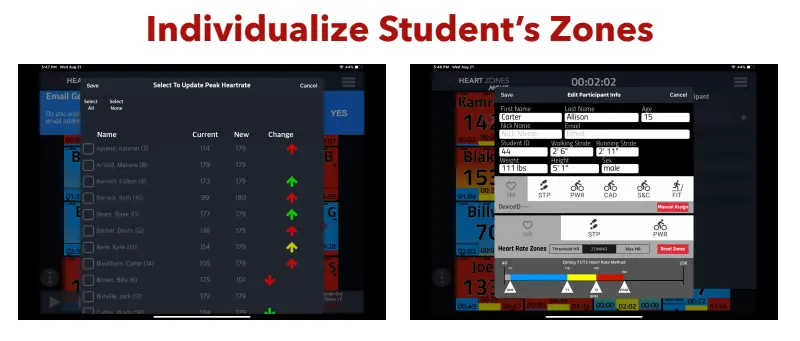
- Toggle the Switch: Flip the switch to enable "Save Peak value during session". This function will then run in the background, capturing the highest heart rate achieved by each participant.
3. Saving the new Peak Heart rates
Once the class session is complete, you must stop the recording to finalize the new zone settings:
- Stop and Save: Hit the stop button (square) on the app, select End Session, and choose Save.
- Review Peak Heart Rates: When you end the class, the app will list all the participants, showing the Peak Heart Rate captured during the session.
- Set New Zones: You can then select all participants to adjust their zones or selectively choose individuals whose Peak Heart Rate you want to update. You can choose not to save Peak Heart rates for any participants as well.
- Automatic Calculation: Once saved, the software automatically stores this Peak Heart Rate as the individual's Maximum Heart Rate and uses it to automatically set the Threshold Heart Rate Zones for the participant in all three methodologies (Zoning, Threshold, and Maximum Heart Rate methods):
This automatic zone setting feature saves time and improves accuracy, providing each student/participant with their own unique, personalized zones for future workouts, assessment, and objective grading for PE teachers. For Physical Education, it is recommended to complete this activity early in the school year. You may also run it multiple times throughout the semester to capture fitness improvements.